

Photoview
★ 6.6kA self-hosted alternative to Google Photos
About
Community Ratings
No ratings yetNew this week
Read recap →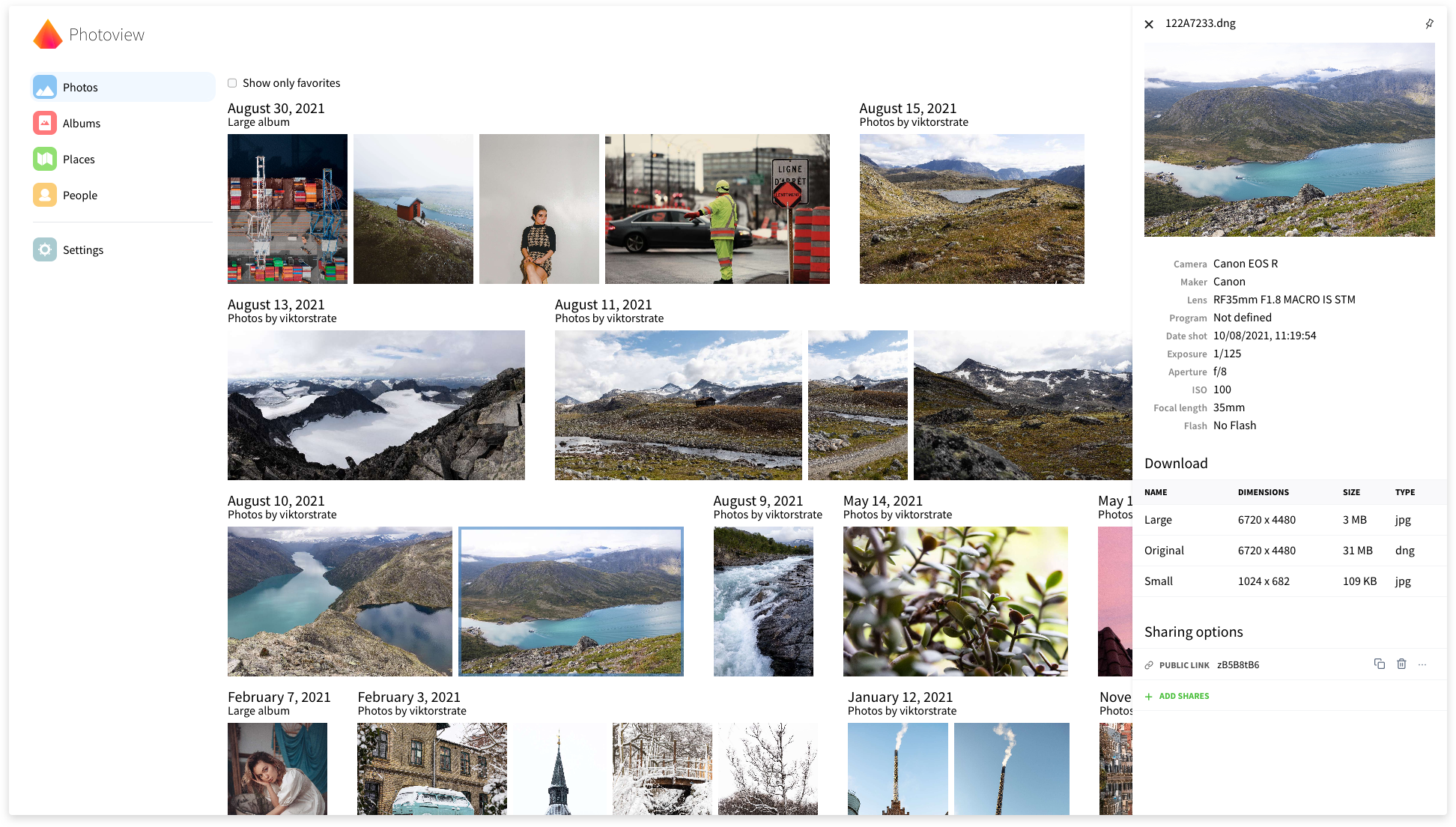
Features
- Filesystem-based album organization
- Per-user access to filesystem paths
- Public album and media sharing with optional password protection
- RAW image support
- EXIF parsing
- Video support and web optimization
- Automatic face recognition and grouping
- Automatic thumbnail generation
- Cookie-token-protected media resources
Details
- Last Updated
- Nov 18, 2026
- Created
- Jul 7, 2019
- Install Methods
- dockerdocker-composepackage-manager
- Requirements
- Docker and Docker Compose for the documented Docker setupSQLite, MariaDB, or PostgreSQLMake (optional, for the provided Makefile)7zz (optional, for the backup scenario)
- Default Port
- 8000web UI
- Authentication
- local
- Backup & Export
- file-backup
- Runtime / Stack
- GoDocker
- Privacy & Independence
- No Cloud RequiredOffline Capable
- User Model
- Multi-User
- Deployment
Deployment: Docker Compose ✓4 Containers — moderate hosting footprintRuns as 4 containers
Run Photoview yourself
Pick how much you want to manage.
 netcupBest match
Full control
A small server, then Docker Compose.
About 20 minutes with Docker
 Hetzner
Full control
A small server, then Docker Compose.
About 20 minutes with Docker
 DigitalOcean
Full control
A small server, then Docker Compose.
About 20 minutes with Docker
2 more ways to host


Some links earn us a commission. netcup pays us one and is our preferred VPS host.
Is this your project? Sponsor a listing
Run Photoview with Docker Compose
Compose file from the Photoview project repository.
4 services · database: mariadb · infra: mariadb · 1 unclassified (watchtower)
no resource limits declared
needs persistent storage (14 volumes)
docker-compose example/docker-compose.example.yml · @ 4d25eb6 · scanned Nov 3, 2026
services:
  ## Makes sure that the media cache folder is created with the correct permissions
  photoview-prepare:
    image: photoview/photoview:2
    hostname: photoview-prepare
    container_name: photoview-prepare
    network_mode: "none"
    user: root
    entrypoint: []
    command: /bin/bash -c "sleep 1 && chown -R photoview:photoview /home/photoview/media-cache"
    cap_add:
      - CHOWN
    volumes:
      - "/etc/localtime:/etc/localtime:ro" ## use local time from host
      - "/etc/timezone:/etc/timezone:ro" ## use timezone from host
      - "${HOST_PHOTOVIEW_LOCATION}/storage:/home/photoview/media-cache"

  photoview:
    image: photoview/photoview:2
    labels:
      - "com.centurylinklabs.watchtower.enable=true"
    hostname: photoview
    container_name: photoview
    restart: unless-stopped
    stop_grace_period: 10s
    networks:
      - ui_net
      - api_db_net
    ports:
      - "8000:80" ## HTTP port (host:container)
    ## This ensures that DB is initialized and ready for connections.
    ## Comment out the entire `depends_on` section if PHOTOVIEW_DATABASE_DRIVER is set to `sqlite` in the .env
    ## Or comment out the `mariadb:` and uncomment the `postgres:` if PHOTOVIEW_DATABASE_DRIVER is set to `postgres`
    depends_on:
      photoview-prepare:
        condition: service_completed_successfully
      # postgres:
      mariadb:
        condition: service_healthy
    ## Security options for some restricted systems
    security_opt:
      - seccomp:unconfined
      - apparmor:unconfined
    environment:
      PHOTOVIEW_DATABASE_DRIVER: ${PHOTOVIEW_DATABASE_DRIVER}
      ## Comment out the next variable in the case PHOTOVIEW_DATABASE_DRIVER is set to `sqlite` or `postgres` in the .env
      PHOTOVIEW_MYSQL_URL: "${MARIADB_USER}:${MARIADB_PASSWORD}@tcp(photoview-mariadb)/${MARIADB_DATABASE}"
      ## Uncomment the next line if PHOTOVIEW_DATABASE_DRIVER is set to `sqlite` in the .env
      # PHOTOVIEW_SQLITE_PATH: ${PHOTOVIEW_SQLITE_PATH}
      ## Uncomment the next line if PHOTOVIEW_DATABASE_DRIVER is set to `postgres` in the .env
      # PHOTOVIEW_POSTGRES_URL: postgres://${PGSQL_USER}:${PGSQL_PASSWORD}@photoview-pgsql:5432/${PGSQL_DATABASE}?sslmode=${PGSQL_SSL_MODE}
      ## Uncomment the next variable if set in the `.env` file
      # PHOTOVIEW_UI_ENDPOINTS: ${PHOTOVIEW_UI_ENDPOINTS}
      PHOTOVIEW_LISTEN_IP: "0.0.0.0"
      ## Uncomment the next variable and set a different value to change the port photoview uses inside the container.
      ## If you change this, remember to update the port mapping (under the `ports:`) above!
      # PHOTOVIEW_LISTEN_PORT: 80
      ## Uncomment the next variable and set a different value to set the location of the media cache inside the container.
      ## Make sure that you know why you are doing this.
      ## If you change this, remember to update the corresponding paths in:
      ## - the command of the `photoview-prepare` service
      ## - the `photoview-prepare` service's right side of the storage volume mount (under the `volumes:`)
      ## - the right side of the storage volume mount (under the `volumes:`) below
      # PHOTOVIEW_MEDIA_CACHE: "/home/photoview/media-cache"
      ## Optional: To enable map related features, you need to create a mapbox token.
      ## A token can be generated for free here https://account.mapbox.com/access-tokens/
      ## It's a good idea to limit the scope of the token to your own domain, to prevent others from using it.
      MAPBOX_TOKEN: ${MAPBOX_TOKEN}
      ## If you want to use it, set the correct value in the .env file.
      ## Support `qsv`, `vaapi`, `nvenc`.
      ## Only `qsv` is verified with `/dev/dri` devices (see below `devices`).
      PHOTOVIEW_VIDEO_HARDWARE_ACCELERATION: ${PHOTOVIEW_VIDEO_HARDWARE_ACCELERATION}
      ## Uncomment the next variable if set in the `.env` file to override the default 5s media probe timeout
      # PHOTOVIEW_MEDIA_PROBE_TIMEOUT: ${PHOTOVIEW_MEDIA_PROBE_TIMEOUT}
    ## Share hardware devices with FFmpeg (optional):
    # devices:
    ## Uncomment next devices mappings if they are available in your host system
    ## Intel QSV and/or AMD VA-API
    # - "/dev/dri:/dev/dri"
    ## Nvidia CUDA
    # - "/dev/nvidia0:/dev/nvidia0"
    # - "/dev/nvidiactl:/dev/nvidiactl"
    # - "/dev/nvidia-modeset:/dev/nvidia-modeset"
    # - "/dev/nvidia-nvswitchctl:/dev/nvidia-nvswitchctl"
    # - "/dev/nvidia-uvm:/dev/nvidia-uvm"
    # - "/dev/nvidia-uvm-tools:/dev/nvidia-uvm-tools"
    ## Video4Linux Video Encode Device (h264_v4l2m2m)
    # - "/dev/video11:/dev/video11"
    volumes:
      ## Example:
      ## - "/host/folder:/container/folder"
      - "/etc/localtime:/etc/localtime:ro" ## use local time from host
      - "/etc/timezone:/etc/timezone:ro" ## use timezone from host
      ## Uncomment the next line if PHOTOVIEW_DATABASE_DRIVER is set to `sqlite` in the .env
      # - "${HOST_PHOTOVIEW_LOCATION}/database:/home/photoview/database"
      - "${HOST_PHOTOVIEW_LOCATION}/storage:/home/photoview/media-cache"
      ## Change This in the .env file: to the directory where your photos are located on your server.
      ## You can mount multiple paths if your photos are spread across multiple directories.
      ## The same path as the container path set here, you'll need to provide on the Photoview's init page (the one between the ':' chars).
      ## If you mount several folders, provide the path to the parent one on the init page.
      ## If you mount several folders, make sure that there are no direct mappings to the media root folder.
      ## This means that you need to also modify the container path of the HOST_PHOTOVIEW_MEDIA_ROOT
      ## to something like '/photos/main'. Note that this new name ('main' in this example) will become an album in Photoview.
      - "${HOST_PHOTOVIEW_MEDIA_ROOT}:/photos:ro"
      ## *Additional* media folders can be mounted like this (set the variable in .env file)
      ## Note that a mount cannot be located in a subfolder of another mount.
      # - "${HOST_PHOTOVIEW_MEDIA_FAMILY}:/photos/Family:ro"

  ## Watchtower upgrades services automatically (optional)
  ## WARNING: the automatic version upgrades may silently generate unexpected problems,
  ##   so please periodically check the logs
  watchtower:
    image: nickfedor/watchtower:latest
    hostname: watchtower
    container_name: watchtower
    networks:
      - ext_only_net
    restart: unless-stopped
    environment:
      ## Comment out the next variable if you want Watchtower to auto-update all containers, running on the host,
      ## while now it will update only those with the label "com.centurylinklabs.watchtower.enable=true"
      WATCHTOWER_LABEL_ENABLE: true
      WATCHTOWER_CLEANUP: ${WATCHTOWER_CLEANUP}
      WATCHTOWER_POLL_INTERVAL: ${WATCHTOWER_POLL_INTERVAL}
      WATCHTOWER_TIMEOUT: ${WATCHTOWER_TIMEOUT}
    volumes:
      - "/var/run/docker.sock:/var/run/docker.sock"
      - "~/.docker/config.json:/config.json:ro" ## optional, for authentication if you have a Docker Hub account
      - "/etc/localtime:/etc/localtime:ro" ## use local time from host
      - "/etc/timezone:/etc/timezone:ro" ## use timezone from host

  ## Comment out the `mariadb` service if PHOTOVIEW_DATABASE_DRIVER is set to `sqlite` or `postgres` in the .env
  mariadb:
    image: mariadb:lts
    labels:
      - "com.centurylinklabs.watchtower.enable=true"
    hostname: photoview-mariadb
    container_name: photoview-mariadb
    restart: unless-stopped
    stop_grace_period: 5s
    ## Optimized MariaDB startup command for better performance and compatibility
    command: mariadbd --innodb-buffer-pool-size=512M --transaction-isolation=READ-COMMITTED --character-set-server=utf8mb4 --collation-server=utf8mb4_unicode_ci --max-connections=512 --innodb-rollback-on-timeout=OFF --innodb-lock-wait-timeout=120
    security_opt: ## see https://github.com/MariaDB/mariadb-docker/issues/434#issuecomment-1136151239
      - seccomp:unconfined
      - apparmor:unconfined
    networks:
      - api_db_net
    ## Comment the previous one and uncomment the following 3 lines if you want to access the database directly
    #  - ui_net
    # ports:
    # - "3306:3306" ## host:container
    environment:
      MARIADB_AUTO_UPGRADE: "1"
      MARIADB_DATABASE: ${MARIADB_DATABASE}
      MARIADB_USER: ${MARIADB_USER}
      MARIADB_PASSWORD: ${MARIADB_PASSWORD}
      MARIADB_ROOT_PASSWORD: ${MARIADB_ROOT_PASSWORD}
    volumes:
      ## Example:
      ## - "/host/folder:/container/folder"
      - "/etc/localtime:/etc/localtime:ro" ## use local time from host
      - "/etc/timezone:/etc/timezone:ro" ## use timezone from host
      - "${HOST_PHOTOVIEW_LOCATION}/database/mariadb:/var/lib/mysql" ## DO NOT REMOVE
    healthcheck:
      test: healthcheck.sh --connect --innodb_initialized
      interval: 1m
      timeout: 5s
      retries: 5
      start_period: 3m

  ## Uncomment the `postgres-autoupgrade` service if you want to upgrade PostgreSQL automatically, or follow the
  ## official PostgreSQL upgrade guide https://www.postgresql.org/docs/current/upgrading.html manually.
  ## Don't forget to uncomment the 3 `depends_on` lines in the `postgres` service.
  ## This service will upgrade the PostgreSQL database to the version, specified in the `image` tag.
  ## Read more on the https://hub.docker.com/r/pgautoupgrade/pgautoupgrade
  ## Tip: Back up the Photoview data before autoupgrade to a new PostgreSQL version.
  ## It is an optional service to simplify the upgrade process. You can also upgrade PostgreSQL manually.
  ## It is safe to keep it enabled, as if it detects no upgrade is needed, it exits immediately.
#   postgres-autoupgrade:
#     image: pgautoupgrade/pgautoupgrade:18-alpine
#     hostname: pgsql-upg
#     container_name: pgsql-upg
#     network_mode: "none"
#     restart: "no"
#     environment:
#       POSTGRES_DB: ${PGSQL_DATABASE}
#       POSTGRES_USER: ${PGSQL_USER}
#       POSTGRES_PASSWORD: ${PGSQL_PASSWORD}
#       PGAUTO_ONESHOT: "yes"
#     volumes:
#       ## Example:
#       ## - "/host/folder:/container/folder"
#       - "/etc/localtime:/etc/localtime:ro" ## use local time from host
#       - "/etc/timezone:/etc/timezone:ro"   ## use timezone from host
#       - "${HOST_PHOTOVIEW_LOCATION}/database/postgres:/var/lib/postgresql" ## DO NOT REMOVE

## Uncomment the `postgres` service if PHOTOVIEW_DATABASE_DRIVER is set to `postgres` in the .env
#  postgres:
#    image: postgres:18-alpine
#    labels:
#      - "com.centurylinklabs.watchtower.enable=true"
#    hostname: photoview-pgsql
#    container_name: photoview-pgsql
#    restart: unless-stopped
#    stop_grace_period: 5s
#    ## Security options for some restricted systems
#    security_opt:
#      - seccomp:unconfined
#      - apparmor:unconfined
#    ## Uncomment the following 3 lines if you want to use the autoupgrade service
#    #depends_on:
#    #  postgres-autoupgrade:
#    #    condition: service_completed_successfully
#    networks:
#      - api_db_net
#    ## Comment the previous one and uncomment the following 3 lines if you want to access the database directly
#    #  - ui_net
#    # ports:
#      # - "5432:5432" ## host:container
#    environment:
#      POSTGRES_DB: ${PGSQL_DATABASE}
#      POSTGRES_USER: ${PGSQL_USER}
#      POSTGRES_PASSWORD: ${PGSQL_PASSWORD}
#      ## See other optional variables in the https://hub.docker.com/_/postgres
#    volumes:
#      ## Example:
#      ## - "/host/folder:/container/folder"
#      - "/etc/localtime:/etc/localtime:ro" ## use local time from host
#      - "/etc/timezone:/etc/timezone:ro"   ## use timezone from host
#      - "${HOST_PHOTOVIEW_LOCATION}/database/postgres:/var/lib/postgresql" ## DO NOT REMOVE
#    healthcheck:
#      test: pg_isready -U $$POSTGRES_USER -d $$POSTGRES_DB
#      interval: 1m
#      timeout: 5s
#      retries: 5
#      start_period: 3m

networks:
  # Network for external communication
  ui_net:
    driver: bridge

  # Network for Backend <-> DB communication (Internal only)
  api_db_net:
    internal: true

  # Network for the Watchtower that needs internet but no local services
  ext_only_net:
    driver: bridge
This file may be out of date. Check the Photoview website for current setup steps.
Tags
Track your self-hosted stack
Bookmark software to try, rate tools you've used, and keep your collection in one place.
Alternatives to Photoview

HomeGallery

Immich

LibrePhotos

Lychee

Photofield

ChronoFrame

Piwigo

PiGallery 2

Imagor Studio

SPIS

PhotoPrism

Single File PHP Gallery
Related Software

Nextcloud Memories

Stash

Gossa
Vixipy

Apaxy
